Schedules, webhooks and inbox
Schedules run a prompt at configured times. Webhooks run a prompt when another system calls a secret trigger URL. Their results are saved as conversations and run history. Use the inbox when work needs a human decision.
Schedule a recurring task

- Open
/scheduledand select the new-schedule action. - Enter a name, choose an available model and write the prompt. Choose Run as to use the ordinary assistant or an active personal Dot you own.
- Select hourly, daily, weekly or monthly timing; use Advanced for a five-field cron expression.
- Choose a timezone and inspect the summary and upcoming-run preview. Weekly schedules require at least one weekday.
- Decide whether tools should be enabled for the run.
- Decide whether runs should reuse a conversation. If enabled, choose the history window, from 1 to 50 rounds, and optionally select an existing conversation through the linked-chat picker.
- Save, then inspect the schedule card's next-run time and active status.
The form accepts names up to 128 characters and prompts up to 8,000 characters. It displays configured GDPR and NDA metadata warnings for the selected model. Choose a model appropriate to the actual data in the prompt.
Fresh conversations keep runs independent; reusing a conversation carries the configured recent history into subsequent runs. The schedule card links to the resulting chat or run history, depending on what exists. It displays the selected Dot when bound, the latest success, waiting or failure status, and any recorded error.
Use Pause to prevent future scheduled runs, Resume to reactivate, Edit to change configuration, or Delete and confirm to remove the schedule. The page does not provide a manual run-now button.
Create an event-driven webhook
- Open
/webhooksand select the new-webhook action. - Enter a name, model and prompt describing how to process the incoming event body. Choose Run as to use the ordinary assistant or an active personal Dot you own.
- Choose synchronous or asynchronous execution.
- Decide whether to enable tools. Tools are disabled by default in the new-webhook form; enabling them displays a warning because an external trigger can cause work under your account.
- Optionally enable conversation reuse and choose its recent-history window and linked chat.
- Save and copy the secret trigger URL from its reveal panel.
- Configure the event source to call that URL with its payload.
The trigger URL's secret is the credential. Possession of that URL allows a caller to trigger the webhook while it is enabled. Keep it private. The prompt receives the request method, content type and body as event input. It is not a template in which you must invent payload placeholder syntax. The trigger reads at most the first 256 KiB of the body; additional bytes are not processed. This is truncation, not an oversize rejection.
| Mode | HTTP behavior |
|---|---|
| Asynchronous | Returns HTTP 202 with a session_id; the run continues in the background. |
| Synchronous | Returns HTTP 200 with output on success, HTTP 202 with status: waiting and a session ID when a decision is needed, or HTTP 502 with a run error. |
Acceptance does not mean successful execution. Follow the recorded conversation and run status.
Inspect and replay webhook runs
A webhook card shows active/paused state, execution mode, latest status, chat and run-history links. Run history records the payload and the prompt used for that fire. These can contain sensitive event data.
After a payload has been stored, use the rerun link to replay it with a prompt. Run history can also identify a specific older run to replay. Rerunning creates a fresh conversation with the webhook's current Dot binding and can execute tools again; use it deliberately for debugging or revised processing. A rerun that needs approval is accepted with HTTP 202 and opens the conversation; answer it in Inbox.
Use Pause or Resume to control future triggers. A paused or invalid trigger returns not-found behavior. Rotate the secret when you need a replacement trigger URL, and update the event source. Delete removes the configured webhook after confirmation.
Answer requests in the inbox
Open /inbox to review pending requests visible to your account. The navigation badge updates as waiting items change. Items can include a chat or agent context and a link back to the originating work.
- Read the request, its origin and any visitor message or supplied slots.
- Expand transcript context when offered.
- For approval, inspect the tool name and arguments before choosing an available decision.
- For a requested answer or value, fill in the supplied field and submit.
- Check that the item was settled and follow the original conversation to inspect resumed work.
The card only offers decisions the server permits. Expiry information appears when the request has an expiry. If another person already settled it or it expired, the page reports that state and refreshes; your later click does not replace the earlier decision. Sensitive-value requests can use a password field rather than a visible text area.
Manage personal Dots
Open Workspace → Dots to list and create your personal Dots or change their active state. Your administrator enables Personal Dot manager in your resolved gateway group; ordinary agent management is a separate permission. Admins hold both. The configured cap counts active Dots even when idle; deactivating one frees a slot. Removing management permission blocks lifecycle management, without deactivating existing Dots or stopping their runs. Tool access and approvals remain bounded by the current permissions on execution.
A schedule or webhook bound to a Dot that is later deactivated, or whose principal is disabled, runs as the ordinary assistant from then on rather than failing. Disabling the Dot's principal also cancels its in-flight runs, the same as deactivating the Dot.
Set up a personal Dot in conversation
- Choose Set up a Dot together on
/dots. - Describe the work in your own words. Include what the Dot should read, what result you expect and which actions need your approval. You can dictate the description when transcription is available.
- Answer the assistant's questions. It checks your available tools and knowledge collections. Describe missing information or ask for changes in the same conversation.
- Review Your Dot proposal: the name, purpose, identity, selected knowledge collection, tools and approval rules. Tools with the same capability and approval rule appear together, with a count when there is more than one. Open Review work instructions to read the actual instructions, tone, topics and each individual tool ID with its approval rule.
- Resolve any requirements listed in the warning. Then choose Set up Dot. AIplane checks your current permissions and the active limit again. Planning a Dot does not use an active slot.
- Open the created Dot's Details to adjust tools, memory, connections or automation, or start its private chat.
For example, describe a research assistant that reads public documentation and explains its findings with sources. Its work instructions are saved with the Dot and apply to its chats and background runs. You can continue refining a proposal before creation; starting a new conversation gives you a separate proposal. After requesting a change, wait for a new proposal to review; the previous proposal cannot be applied. Reopening setup resumes your latest personal Dot planning conversation.
Available memory tools are included by default and shown in the proposal. Their Allow rule lets the Dot save, recall, update and remove its own notes without asking for each call. User-wide memory remains read-only context. Other selected read-only tools default to Allow; writes and tools with unknown effects default to Ask. You can adjust these rules in the Dot's access settings after creation.
This setup flow creates personal Dots. Use the existing settings to create organization Dots or edit an existing Dot; conversational editing is not available in this flow. The assistant cannot complete provider authentication, create schedules or authorize communication peers in this flow. Requested settings that it cannot apply remain unresolved; it does not create a partially configured Dot. Select a supported configuration or configure those capabilities through the existing settings after creation. Strict topic enforcement is not available for personal Dots in this setup flow.
Configure a personal Dot's tool access
Open /dots, open your Dot's Details and select the Access tab. Search
by tool name, description or ID, select each tool the Dot may use, and
choose Allow or Ask before each call. Save your changes. Unselected
tools are denied. Tool IDs distinguish actions that share a capability title.
The identity label identifies the user, Dot or shared connector connection;
a connector configured to ask still asks when the Dot rule is Allow.
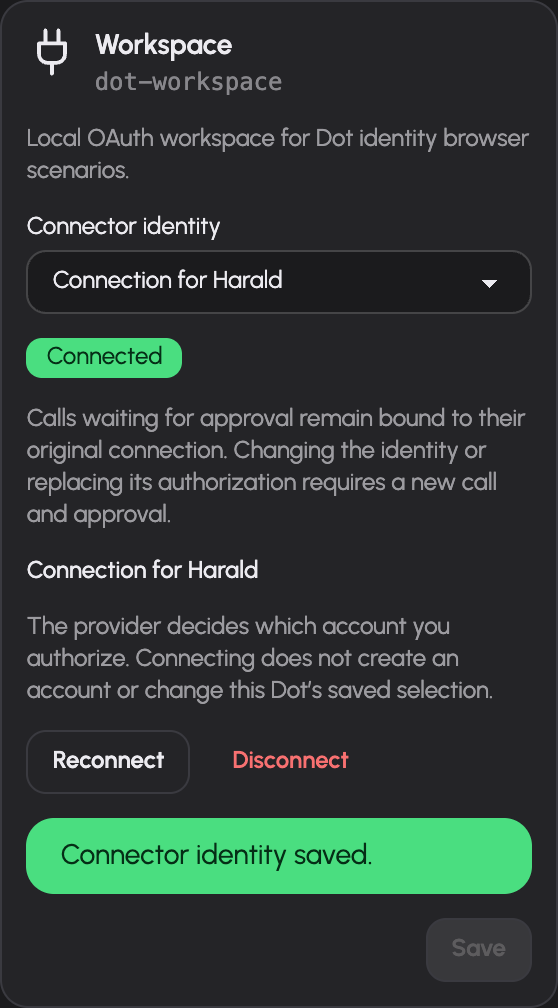
For a supported personal OAuth connector, use Connector identity to choose My connection or the connection for your named Dot. Connect authorizes an account at the provider; it does not create an account or select it for execution. After returning, choose the connected identity and save it. The provider determines the external account; AIplane does not infer an email address from the token.
Identity changes leave your tool rules intact. Reload access to inspect the selected connection's actual tools before saving rules. A disconnected or replaced selected credential stays unavailable until you explicitly save an available selection. Disconnect removes only that Dot's local credentials; your personal connection remains. Pending calls retain their original connection and generation: after a selection change or reauthorization, request a new call and approval. Ordinary token refresh preserves the generation.
Changing the connector's server or authentication configuration also makes previous credentials unavailable. Reload connections, reconnect the affected account, then explicitly save the identity you want the Dot to use. Your personal account and the Dot account reconnect separately. Returning the connector to its previous server does not reactivate earlier credentials or pending approvals. Display-name changes do not require reconnection.
If the connector is disabled, removed or outside your connector permissions, Reload connections retains the Dot's actual local credentials under their stored connector key. You can disconnect them with Personal Dot manager permission, including while the Dot is inactive and when that connection was never selected. The unavailable row offers no connection or selection action and does not disclose the restricted connector's details or your separate personal account. Disconnect does not revoke the account at the provider.
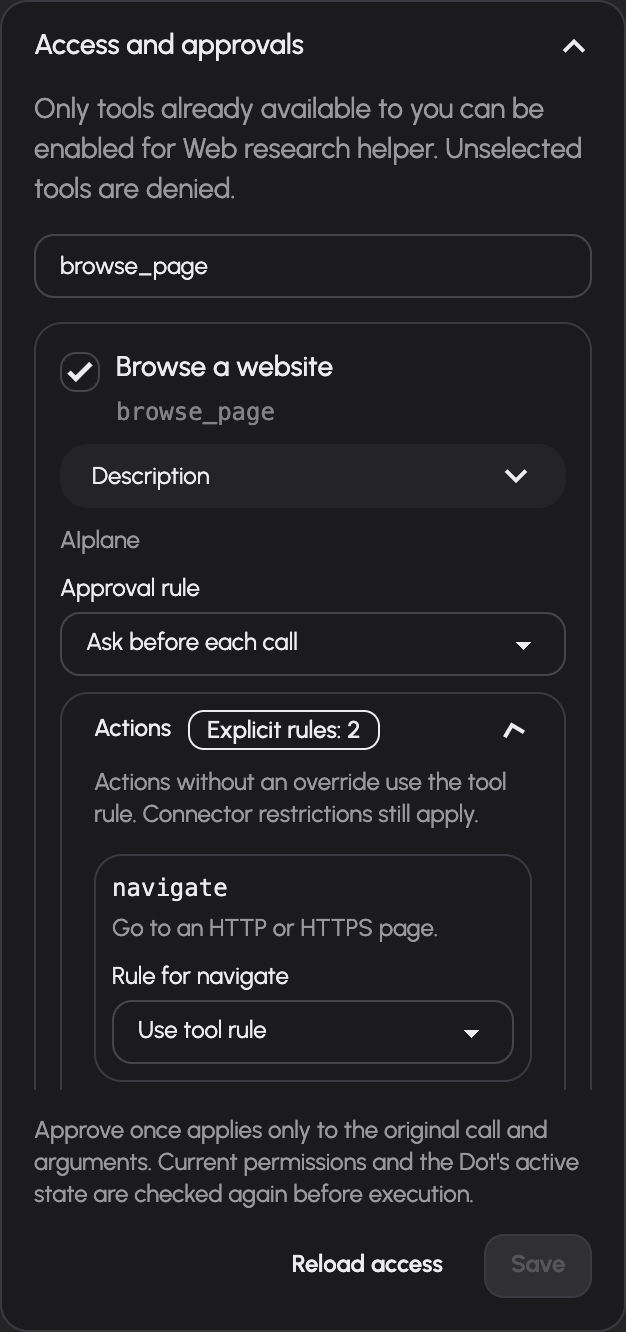
For browse_page or browser_control, open Actions under the selected tool. Choose Use tool
rule, Allow, Ask, or Deny for each action. For example, keep the tool
on Ask, allow read and deny fill. Save and reload to review the stored rules.
A denied action does not execute, including on an earlier pending approval.
Browser action lists are checked in full: any Deny prevents the whole batch;
otherwise any Ask requests approval once for that batch. browser_control
still requires your connected browser extension and its own confirmations.
Connector restrictions still apply. Other tools show action controls only when
their implementation supplies a catalogue. If a saved action is unavailable,
remove its rule before saving; the interface preserves it for review.
New Dots select the existing memory tools with Allow when available to your account. Memory writes belong to that Dot; user-wide memory remains read-only context. If access to organization memory is revoked, its loaded notes are cleared from the panel when the next request is refused. Read-only tools default to Allow when you select them. Other writes and tools with unknown effects default to Ask before each call; you can adjust their rule within your existing rights.
An approval request pauses the Dot chat and appears in chat and Inbox. Approve once permits only that call's recorded arguments. Current permissions and Dot availability are checked again before execution; removing a selected tool or disabling it in your account prevents a pending approval from running it. Deactivating a Dot retains its data and conversations and cancels its active personal runs and linked delegation work. Organization Dots support member configuration, their own connected identities, private draft or published conversations and scoped memory. See Organization Dots for their current access requirements. Organization Dots also support scheduled work as described below. Organization event triggers are described in Create an organization Dot webhook. The organization Dot page links to its schedules and webhooks; both run a selected published version with the Dot's own permissions and selected connected accounts. Automatic memory curation is not available yet. Personal Dot computers provide persistent files and a saved server-side browser profile when the runner has verified persistent storage. During a Dot chat, handover lets you operate that Dot's browser for a login or other browser step, then return control to the Dot. See Personal Dot browser handover and workspace availability.
Configure communication consent
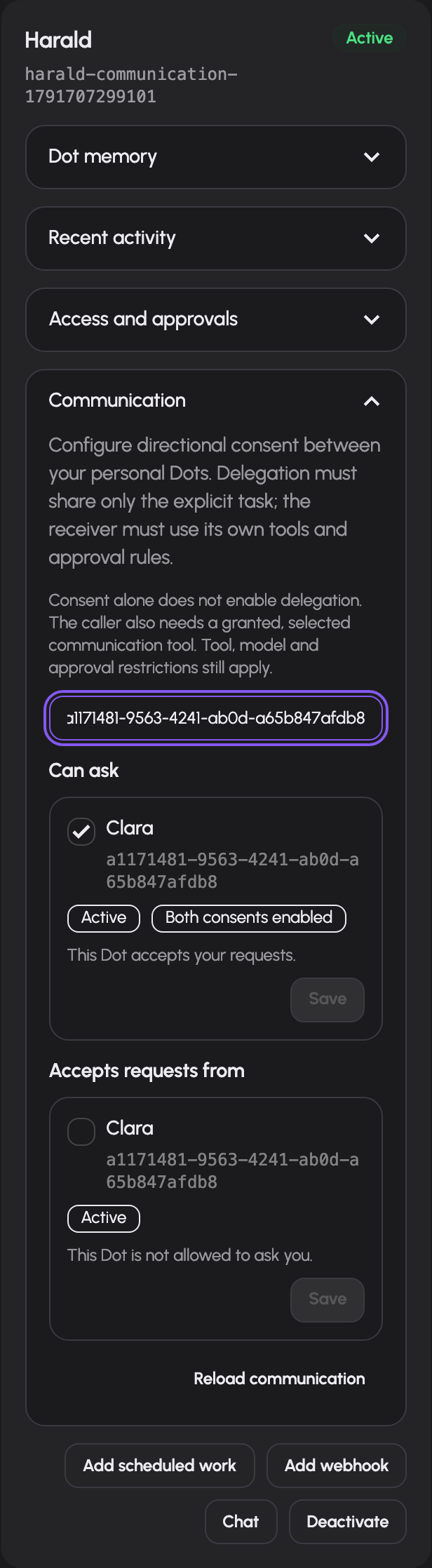
Open Details on a personal Dot card and select Communication. Can ask controls its outgoing consent to each actual owned peer. Accepts requests from controls which peers it accepts requests from. The counterpart choice is read-only; configure it on the other Dot's card. Save each changed row separately. Both consents enabled means both persisted choices allow that direction. Reverse communication needs separate choices.
Inactive peers stay visible. Enabling requires both Dots active, and revocation is available while inactive. A stale save keeps your draft and reports a conflict; use Reload communication to fetch current choices. Changing consent requires current Personal Dot manager permission. To delegate, select the existing forwarding tool in the sending Dot's access rules. The receiving Dot uses its own selected tools, current permissions and memory. Both consents are checked before dispatch; reverse requests require their own consent. Approvals return to your existing Inbox and originating chat. See Dot communication.
Run scheduled or event-driven work as a Dot
An active Dot card has Add scheduled work and Add webhook links to the existing creation forms with that Dot selected. You can also choose it in Run as when creating or editing an automation. The available model, timing, tools, mode and conversation settings remain those of the existing form.

A reused conversation must be private, owned by you and bound to the same Dot. The linked-chat picker shows matching conversations only. Changing Run as clears your linked-chat selection. Choose a new matching chat or start fresh. Ordinary automations cannot reuse a Dot conversation.
Enabling tools does not approve them. Dot access rules, connector rules and your current grants still apply. A turn that started with tools disabled keeps that restriction after resumption, even if you enable tools later. The run also retains its original history window when it resumes.
Waiting means the run needs a decision. Use its Inbox link or open the conversation, inspect the actual tool and arguments, and approve once or deny. Current permissions are checked again. Once settled, inspect the conversation and run history for the outcome. The conversation's normal stop control can stop background work through the same worker registry as chat.
Pausing an automation prevents future triggers; it does not discard an existing pending decision. Deactivating its Dot keeps ordinary pending Dot calls paused and preserves conversations. Affected delegation trees are cancelled when a participating Dot is deactivated or effective consent changes. An inactive or unavailable existing Dot binding remains shown when editing; you may save unrelated changes, reactivate the Dot or choose another active assistant. New bindings require an active Dot you own.
An automation with a running or waiting turn cannot be deleted. Pause it, finish or stop its pending turn, then delete it. The Dot limit counts active Dots, including idle ones; it does not count their scheduled runs. Usage and limits remain attached to your account rather than a separate Dot budget.
Troubleshooting
- No upcoming schedule run: inspect the cron expression, selected weekdays and timezone preview.
- Run fails: inspect the recorded error and conversation. Model grants, upstream health, tools and owner limits can affect execution.
- Webhook returns accepted but there is no useful output: inspect run history; HTTP 202 only acknowledges acceptance.
- Webhook returns not found: verify the current secret URL and active state.
- A run waits for a decision: check the inbox or linked conversation and answer the pending request.
Schedule work for an organization Dot
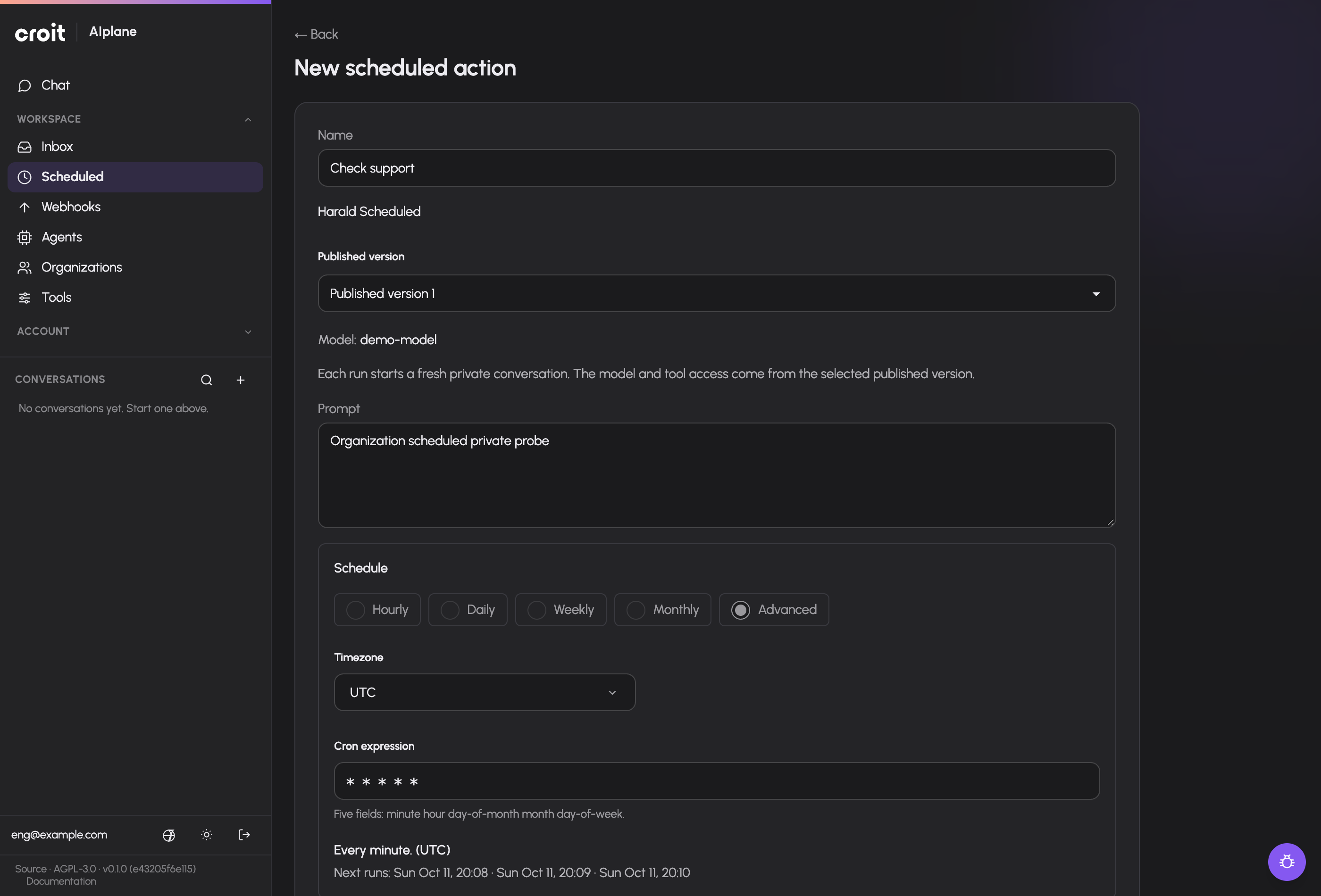
- Open the organization Dot's agent editor with current membership and Write
access, then choose Scheduled actions. This opens
/scheduled?principal_id=<id>. - Choose New scheduled action and enter its name and prompt.
- Select an actual published version. The form shows that snapshot's authored model when present; it does not offer your personal model list. Publish a version before creating the schedule.
- Choose timing and explicitly set the timezone. Use the preview to inspect upcoming fires, and decide whether tools are enabled.
- Save. The schedule card identifies the Dot and pinned version and provides its run history and edit controls.
Each fire starts a fresh private conversation owned by the Dot principal. Organization conversation reuse is unavailable. The schedule survives deletion of the user who created it. The Dot's current model, tool and connector grants govern execution; your personal credentials and preferences are not runtime context. A later publication does not move an existing schedule's pin. Edit the schedule to choose another version.
Current membership and Write access are required to list, configure and inspect these schedules. Personal Dot manager permission is not required. If a save reports a conflict, reload the current action before saving again. Inactive Dots and disabled principals can still be configured by their current writers; they cannot dispatch new work.
Open a recorded conversation from the card or run history. It opens the Dot's Try it → Test chat, where the actual private history supplies the source and captured version. A waiting run can be answered in the private chat or the Inbox by a current member writer. Enabling tools does not approve a tool call.
Pause prevents future fires and preserves an admitted waiting turn. Use Stop in Test chat to cancel its exact running or waiting turn. Stop remains available to a current member writer after deactivation, grant removal or a schedule edit. Editing execution configuration invalidates the old run's configuration authority; stopping it still performs cleanup. New conversation only changes the conversation being viewed.
A schedule with a running, waiting or starting run cannot be deleted. Stop or settle its run, then delete it. A Dot that owns schedules cannot be deleted until those schedules are deleted, including schedules whose runs have ended. Deleting a schedule removes its recorded run history.
Create an organization Dot webhook
- Open an organization Dot as a current member with Write access and choose Webhooks. The page is scoped to that Dot.
- Create a webhook using the existing form. Enter its name and instruction, then explicitly select an actual published version. The model display comes from that version; your personal model selection is not used.
- Choose whether to allow the Dot's tools. The warning identifies the Dot's own permissions because the trigger URL allows an external caller to submit content for it to process. Existing per-tool and per-action approvals still apply.
- Save, copy the actual trigger URL shown once, and configure the event source.
- Inspect the webhook's run history and open its private conversation in the existing agent Test chat. The run identifies its captured published version. Only current member writers can inspect its payload and conversation or answer its pending decisions.
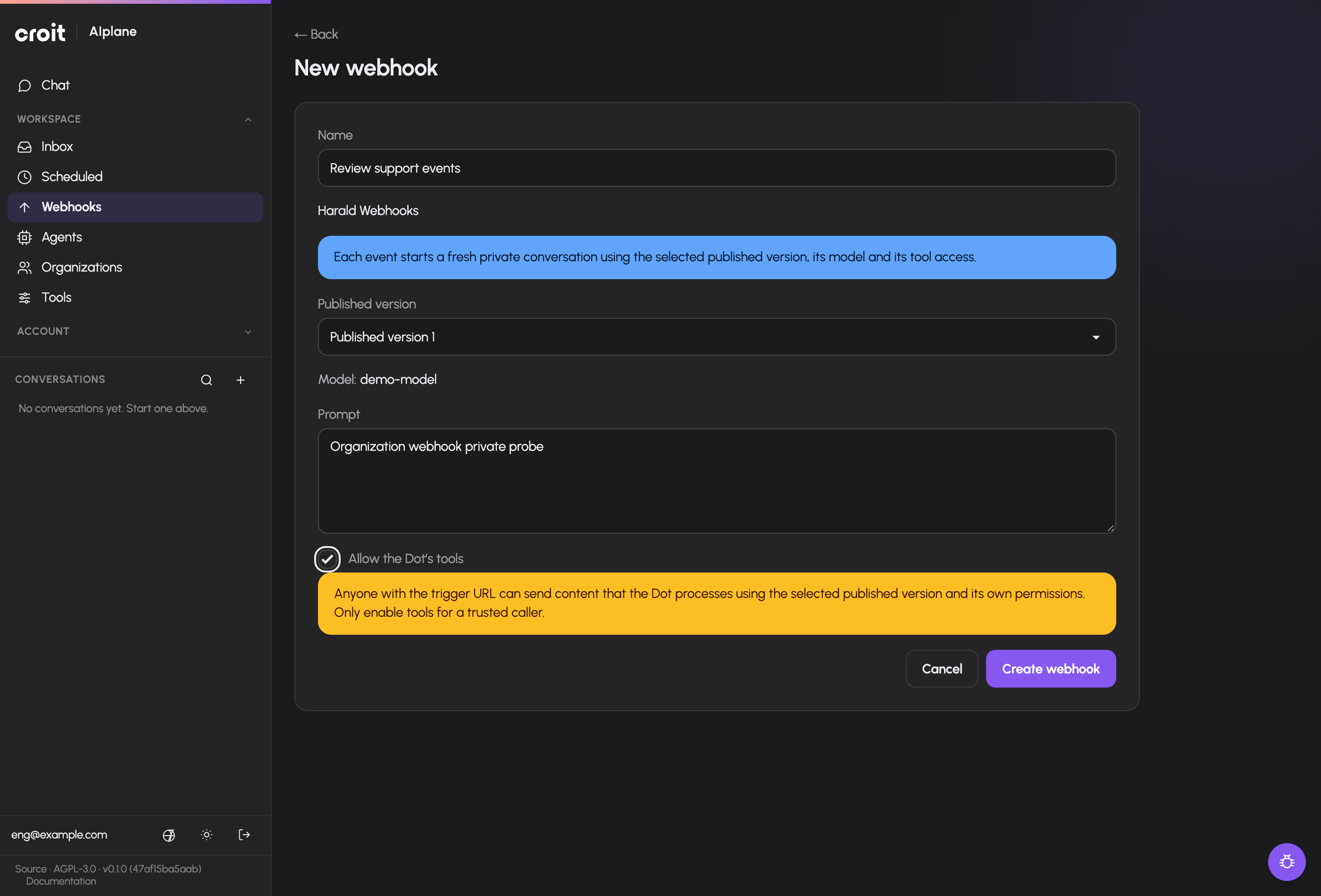
Organization triggers are asynchronous and always open a fresh private principal conversation. HTTP 202 returns only its opaque session ID; it does not expose output, private run errors or waiting decision details to the secret holder. A later publication does not change the selected version. The Dot's own selected connector identities, model/tool grants, usage limits and approval rules apply; no employee's credentials or preferences become runtime context.
Pause stops future public fires. It leaves an admitted decision answerable. Rotation replaces the public secret immediately and preserves admitted work. An explicit member-writer replay remains available while the source is paused; it uses the selected historical payload and the submitted instruction in a new private conversation under the current source version and permissions. Replays may repeat external side effects; review their instruction and approvals.
Edits, pause/resume, rotation and replay compare the configuration generation returned by the current webhook, for personal and organization webhooks. A stale request returns a conflict and preserves the form input; reload the source before retrying. Execution changes replace that generation; renaming, pausing and rotation preserve it. An execution edit prevents an older run from continuing under the changed configuration. Its exact Stop remains available to current member writers through the original private conversation.
The webhook survives deletion of its configuring employee. A retained webhook prevents deleting its Dot identity. Stop or finish active and waiting runs before deleting the webhook; a pending run makes deletion return a conflict. Inactive Dots and disabled principals remain configurable by their current member writers but cannot start or positively resume execution.
Documentation build: 2610.1.108 · commit b774e1f9e2c2